Custom ESP32-S3 development board — professionally manufactured by JLCPCB. A far cry from where it all started. It Started in a School Science Lab — Around 1998 Most people who get into electronics start with a kit, a tutorial, maybe a breadboard and some LEDs. I started by sneaking ferric chloride out of a school science lab to etch my first PCB. That was around 1998. I was living in the Maldives — a small island nation in the Indian Ocean — where there was no electronics supply chain, no maker community, no local PCB fab. Just a chemistry cabinet at school, a copper-clad board from somewhere, and a lot of curiosity. This post is about what the next 25+ years of PCB prototyping looked like from there. The early wins with proper chemicals, the years of improvisation when those chemicals disappeared, the real injuries, the failed boards, and finally — the moment JLCPCB changed ever...
How to use Dockerfile?
This file contains user commands which will be needed to build an image. This is the simplest way that I can explain this. For more information please follow the Dockerfile reference guide
The following image shows a sample Dockerfile that I created to build an image with php. I will explain line by line.
- FROM php:7.4.4-apache - This is where you define what image you will be using to build a custom image
- COPY site1/ /var/www/html - This is will copy the local path content to remote path (to container)
- EXPOSE 80 - This is where you define which port should be exposed

After creating a Dockerfile now you can build the image.
docker build -t somename #this command is to build an image with the given tag name


As you have seen the image name shows phptutorial , which i used as a tag while creating the image.
docker run -i --rm --name phpTut -p 80:80 phptutorial

After a successful run when I brows in to the docker host, it shows the content in the php file that I kept in site path.

So everything works fine and lets go ahead with the interesting part. First stop the container by docker stop command.
docker-compose
In simple terms its an tool to run multiple container docker application. For example you have a php and a MySQL container and you want to run from a single command, docker-compose is the best way. Its an orchestrator and you have to define every thing on an YAML file.
The following image shows the docker-compose.yml file that I created for this post. You can do much more and this is just a basic one and please do refer the documents of docker for more.

Now you can run with docker-compose up command.
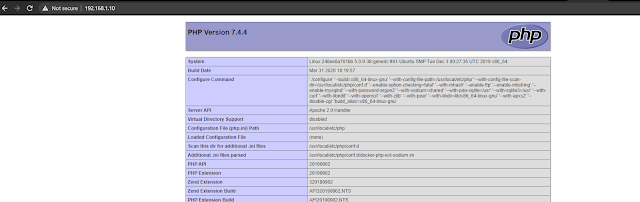
From the video you can see I am running both php and a mysql container from a single command. Below image shows the phpinfo file which is in the php container. How cool is this. you can do many fun stuffs and experiments while you prototyping and you can do more complex things. Lets run a docker ps command to check which containers are running.

Clearly its showing that php and mysql containers are running with its own exposed ports.
lets conclude this topic now. I hope this would help someone. Please do subscribe for more and in future more docker tutorials will come. Lets hope for the best. Thank you all for the support.
Comments
Casino Games - Play the most exciting slots and casino 코인갤 games. ➤ Casino Games & More 벳썸 도메인 at BonusBetsSites777.com. Claim 페이 백 먹튀 Welcome 복불복 룰렛 Bonuses ✓ Free 강원랜드후기 Spins for Desktop & Mobile.